


The left column
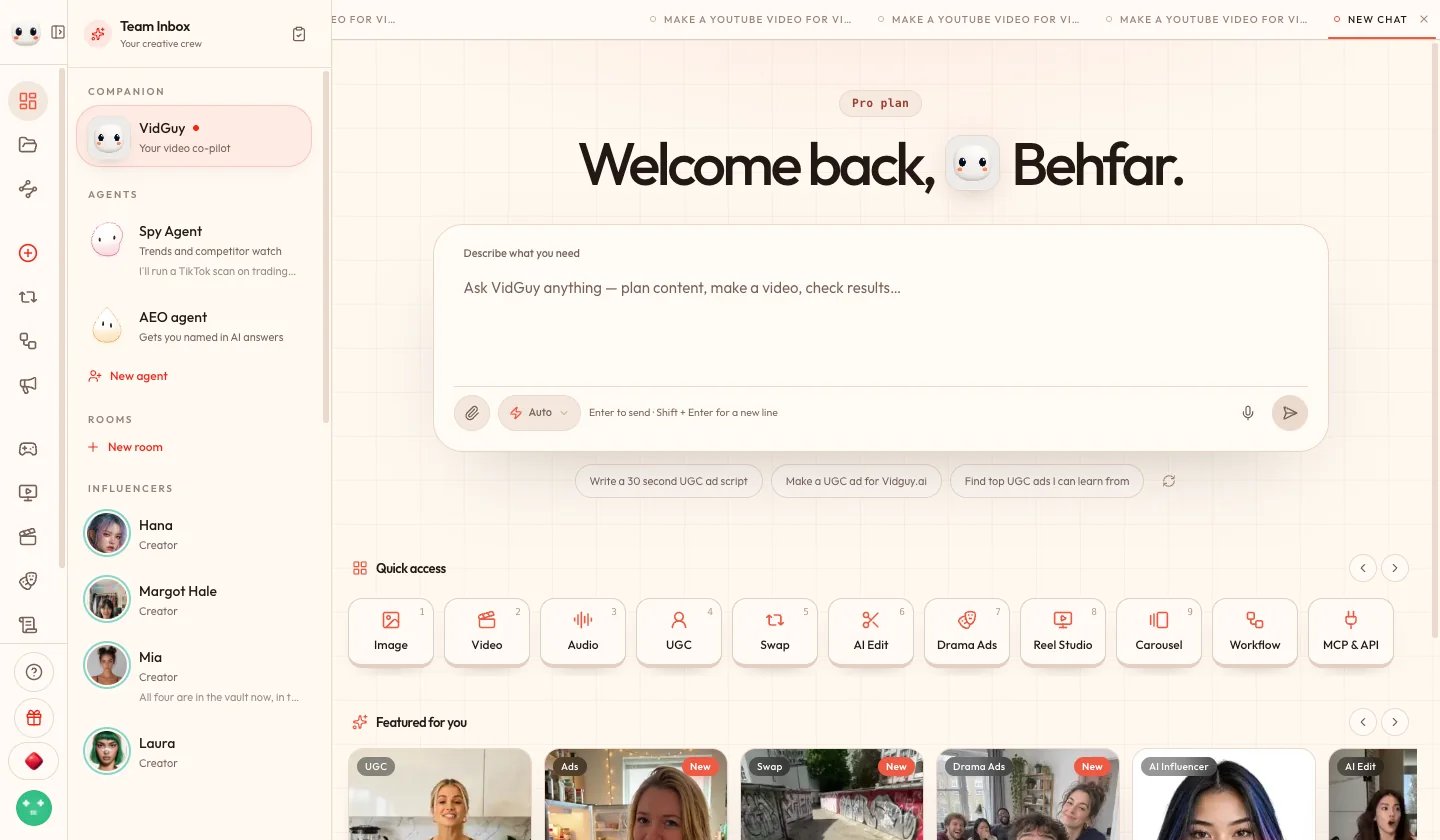
The Team Inbox: VidGuy, your agents, rooms and influencers on the left, a new chat on the right.
- VidGuy: Your video co-pilot. The main chat. Ask for videos, images, hooks, plans and edits.
- Agents: Specialists with one job. Spy is already here: it finds what’s working in your niche and in your competitors’ ads. See Spy. Click New agent to add a Clipper, an Editor or a custom teammate you shape yourself.
- Rooms: Group chats with several teammates at once. Click New room, name it and pick 2 to 6 teammates. Every chat in the room shares that crew.
- Influencers: Recurring characters who front your content. Click New influencer to adopt one or create your own. See AI influencers.
Chat tabs
Each chat opens as a tab above the thread. Click + to start a new chat and keep the old one. To close a chat for good, click the x on its tab and click it again to confirm. Your other chats stay in their tabs, so you can pick up where you left off.Your setup checklist
New accounts see Let’s finish your setup above the message box. Each row is one step:- Review the brand kit VidGuy built from your website.
- Say hi to VidGuy for a quick brainstorm and a content strategy.
- Do market research with Spy Agent. Findings are saved to your Brain only if you say so.
- Browse content templates in Quick Create.
- Add your first influencer.
- Connect an account so drafts can go out.
The message box
Type what you want in plain words and press Enter. Next to the box:- Attach image: Add a product photo or a reference for VidGuy to work from.
- Dictate: Talk instead of typing. Your words drop into the box so you can check them before you send.
- Approval mode: Decides what happens when VidGuy proposes something that costs credits.
- Approve: Every credit-spending job waits until you confirm it on the card.
- Auto: Images, clips and characters start as soon as VidGuy proposes them.
While VidGuy is working, you can keep typing. Send a follow-up to steer the current job, or queue it for when VidGuy finishes. The stop button ends the current reply.
On a new chat
A fresh chat shows two rows under the message box. Quick access opens a tool in one click: Image, Video, Audio, UGC, AI Edit, Carousel, Workflow and MCP & API. When you’re not typing, press the number on a key to open that tool. Featured for you shows cards with a short preview of a feature or template worth trying next, picked for your account.What to ask
Ask for the result, not the steps. Say who it’s for, how long it should be, and what it should feel like.- “Turn my attached product photo into a 10 second ad clip. Keep the product exactly as pictured.”
- “Create a UGC style video where a character recommends our running shoes. Hook, quick pitch, then a call to action.”
- “Give me 3 punchy TikTok hooks for a meal prep video.”