

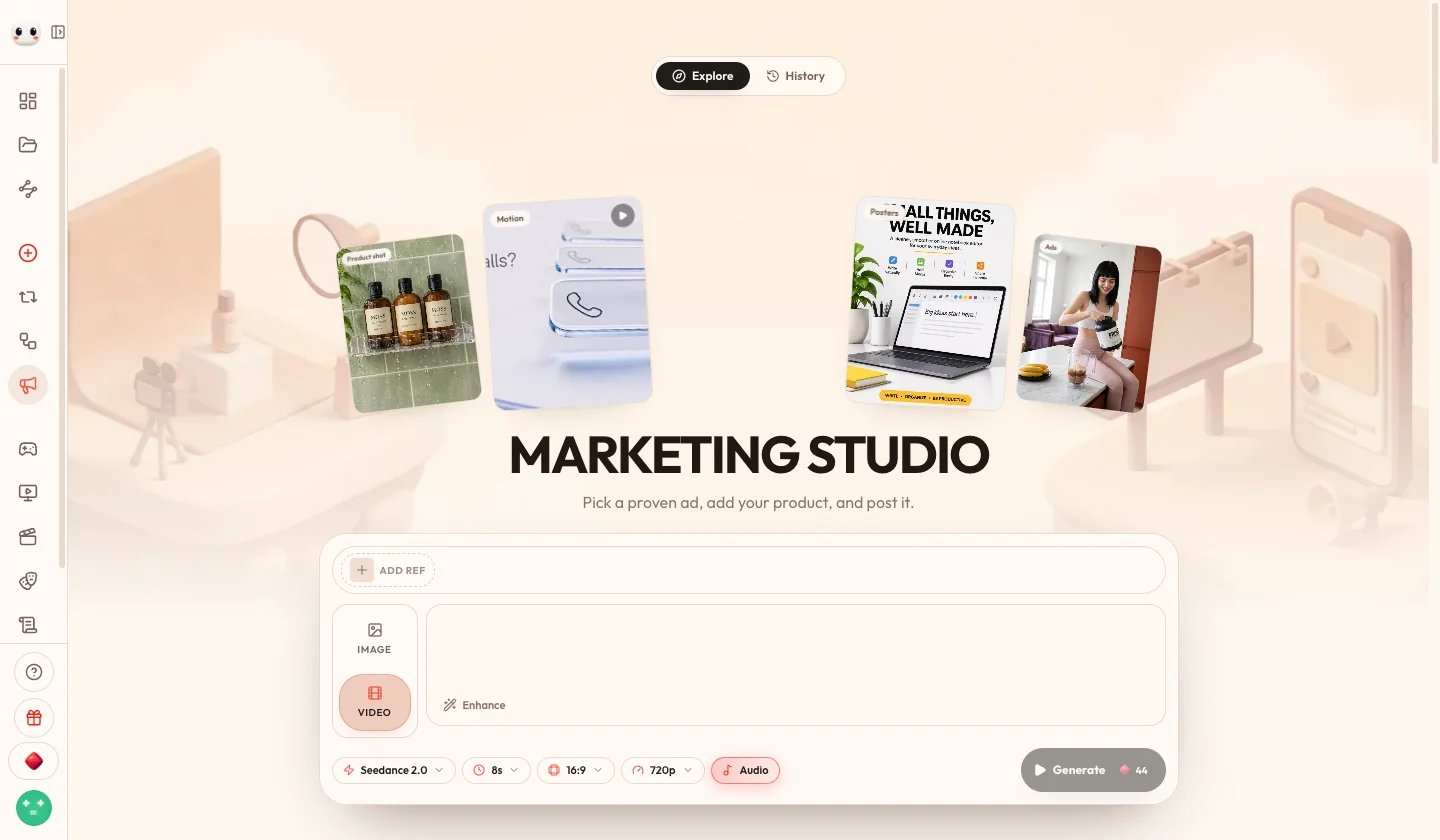
Marketing Studio: template categories up top, the prompt box below, and Explore and History views.
Explore and History
Two tabs sit at the top of the page:- Explore: The template gallery and the prompt box.
- History: Everything you’ve made here. Filter by All, Images or Videos.
Find a template
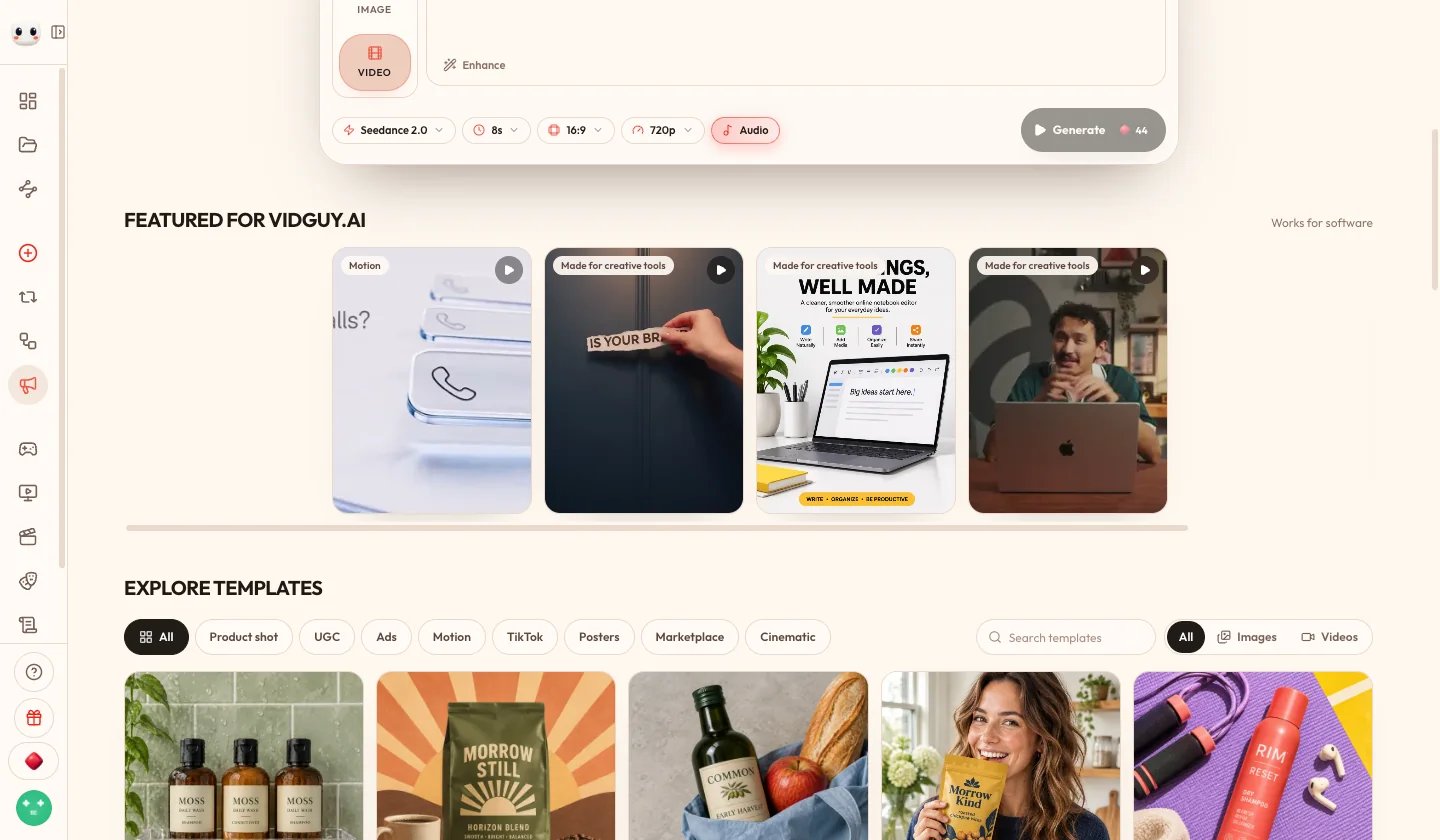
Templates picked for your brand, then every template by category.
- Category: Product shot, UGC, Ads, Motion, TikTok, Posters, Marketplace or Cinematic.
- Type: Images for stills, Videos for clips.
- Search: Type a word like skincare or unboxing.
Recreate a template
1
Open a template
Click any card. You see the original next to the Recreate template form.
2
Add your product
Click Replace product and pick a photo, or pick one from Your products. A template that shows a product marks this Required.
3
Swap the person (optional)
If the template shows a person, click Replace avatar to pick a character from your influencers, VidGuy’s ready-made characters or your own uploads.
4
Say what to change (optional)
Type in Describe your edit, like make the background pink or put it on a beach.
5
Click Recreate
The price shows on the button. VidGuy writes the prompt for your brand and starts the job.
Templates for apps and services
Some templates don’t show a physical product, like app ads and service ads. These ask for your brand instead, and every field is optional:- Your logo
- App screenshots: up to 3, for templates that show an app or software.
- Your message: a Headline and key points, one per line.
Add your product
Product photos come from the asset picker. Besides uploading a file, you can:- Import from Product URL: Paste a product page and VidGuy pulls the images.
- Add your app: Import your app from its URL, or set it up by hand.
Write your own prompt
You don’t have to start from a template. The prompt box on Explore works on its own:- Pick Image or Video on the left.
- Describe the shot. Type
@to tag a character, product or upload. - Click Add ref to attach images, clips or audio, or drop a file on it.
- Set the options, check the price on Generate, and click it.
Credits
The price always shows on the Recreate or Generate button before you spend anything. A recreate uses the engine and settings picked in the prompt box.- Image: about 3 credits per image at the default settings (Seedream 5.5, 2K). 1K images cost less.
- Video: Seedance 2.0 at 720p costs 5.5 credits per second. VidGuy rounds the template’s length up to the next length the engine offers, so an 8 second template costs 44 credits.
Sound is free. See Plans and credits.
Your results
When you click Recreate, VidGuy takes you to History, where the job shows up right away and fills in when it’s done. On a finished card:- Recreate: Puts the prompt and references back in the prompt box.
- Reference: Uses the result as a reference for your next shot.
Results stay in Marketing Studio’s History. They don’t show up in your Library. You can still pick them in the Generations tab of the asset picker.