

Step 1: Get the product in
Everything starts with a clean picture of the real product. The models copy what they see, so a blurry photo gives you a blurry ad.- From a store page: in Marketing Studio, click Add ref in the prompt box, then Import from Product URL. Paste the product page and VidGuy pulls the images.
- From your files: upload a photo. Plain background, good light, label facing the camera.
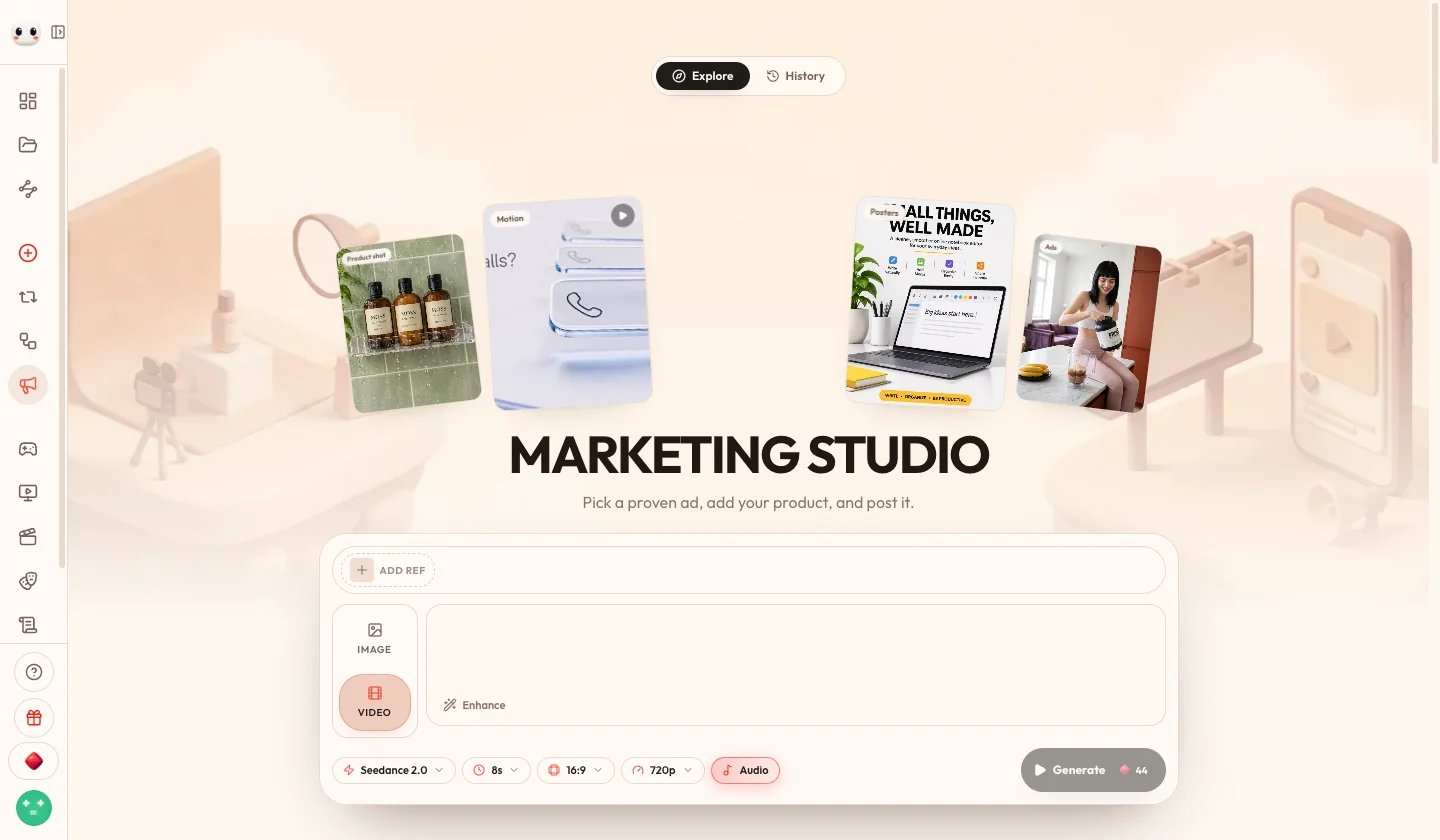
Marketing Studio: pick a template, add your product, and recreate it.
Step 2: Add motion
Now turn the still into video.- In Marketing Studio: recreate a Motion or Ads video template with your product. Or switch the prompt box to Video, attach your hero still and the product photo, and describe one simple move. Slow push in on @product as steam rises. Keep each clip to one action.
- In Workflow: pick the Packshot to launch ad template. You give it a short brief, the product photo and two style references. It plans two shots, draws each one as a still and animates both into clips.
Step 3: Add the voice and the ask
Motion alone rarely sells. Add a person or a voice that says why it matters and what to do next.- A person talking about it: in Quick Create, choose Video, then Avatar, and pick the Product template. Choose a character, write what the video is about, and VidGuy writes the script.
- Just a voice over your clips: ask VidGuy in the Dashboard chat. Write a 15 second voiceover for these three clips. End with “Shop the link in bio”.
- Hook: the problem, in the first two seconds.
- Proof: the product solving it, on screen.
- Ask: one clear action. Shop now, link in bio, try it free.
Check before you post
- Label: readable and spelled right in every shot.
- Size: 9:16 for TikTok and Reels.
- Claims: nothing the product cannot back up.
- Length: cut anything after the ask.
Where to do it in VidGuy
Marketing Studio
Import the product and recreate proven ad templates.
Workflow
The Packshot to launch ad template.
Quick Create
A character talking about your product.
Library
Download and post your Quick Create videos.